Create your first VPN
Sign in, deploy a WireGuard server and connect your first device.
Sign in
Open http://YOUR_SERVER_IP:3000 and sign in with the account you created during the install. The panel is public, but there is no sign-up page: only the account made on the server can get in.
Plain HTTP at first
Out of the box the panel serves plain HTTP, so your password and session travel unencrypted. Settings shows a warning while that is the case. Fix it with one of the options under HTTPS.
Deploy a server and connect
Go to Servers → New server, give it a name and press Deploy.
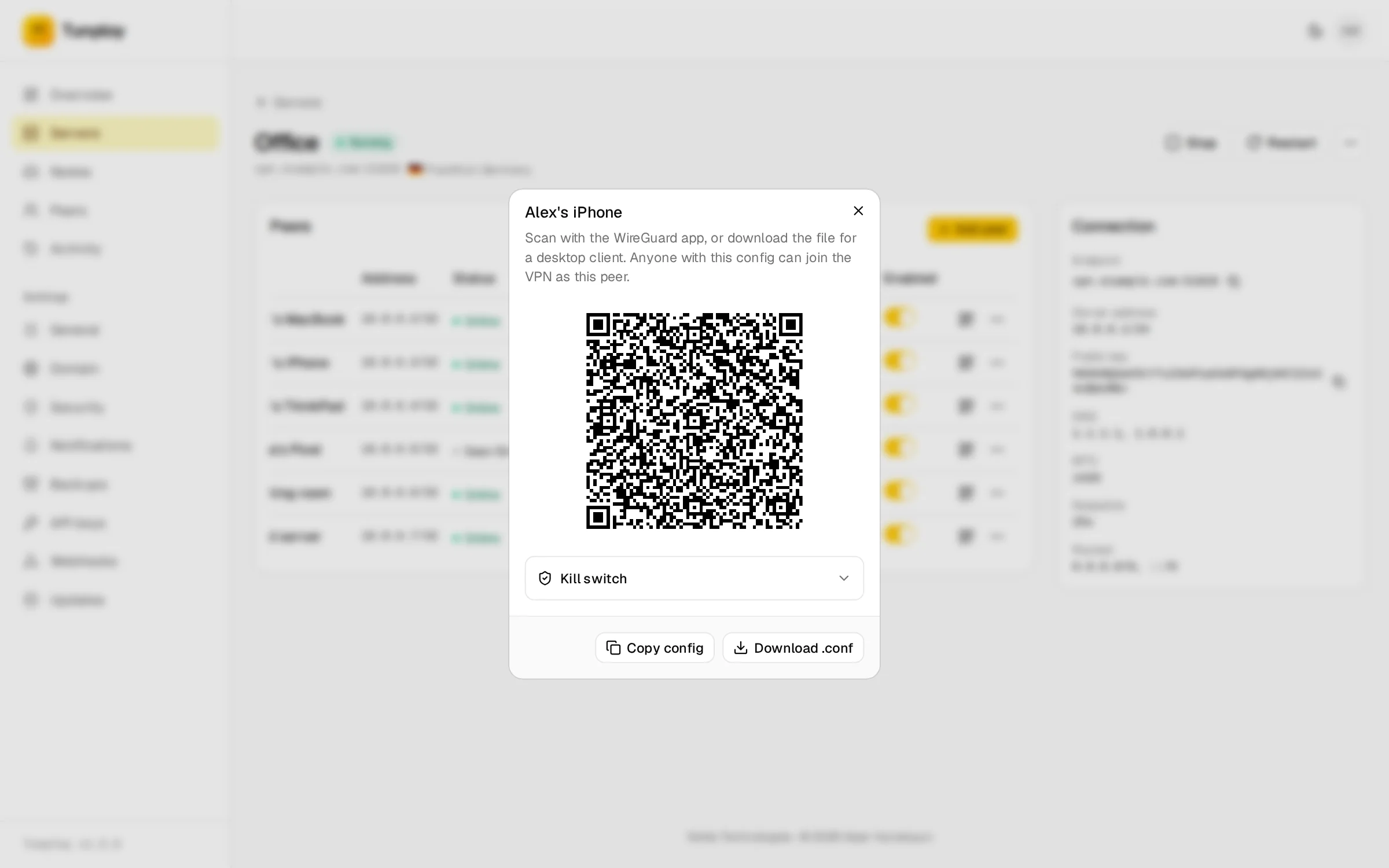
Open the server and choose Add peer. Scan the QR code with the WireGuard app on your phone, or download the .conf file for a laptop.
Connect. The peer shows up as Online within a few seconds.
The endpoint that clients connect to comes from Settings → General. If the install script detected the wrong address, change it there before creating servers. Existing servers keep their own endpoint, which you can change under each server's settings.
Manage devices
Each server's page lists its peers with their address, status, location and traffic this month.
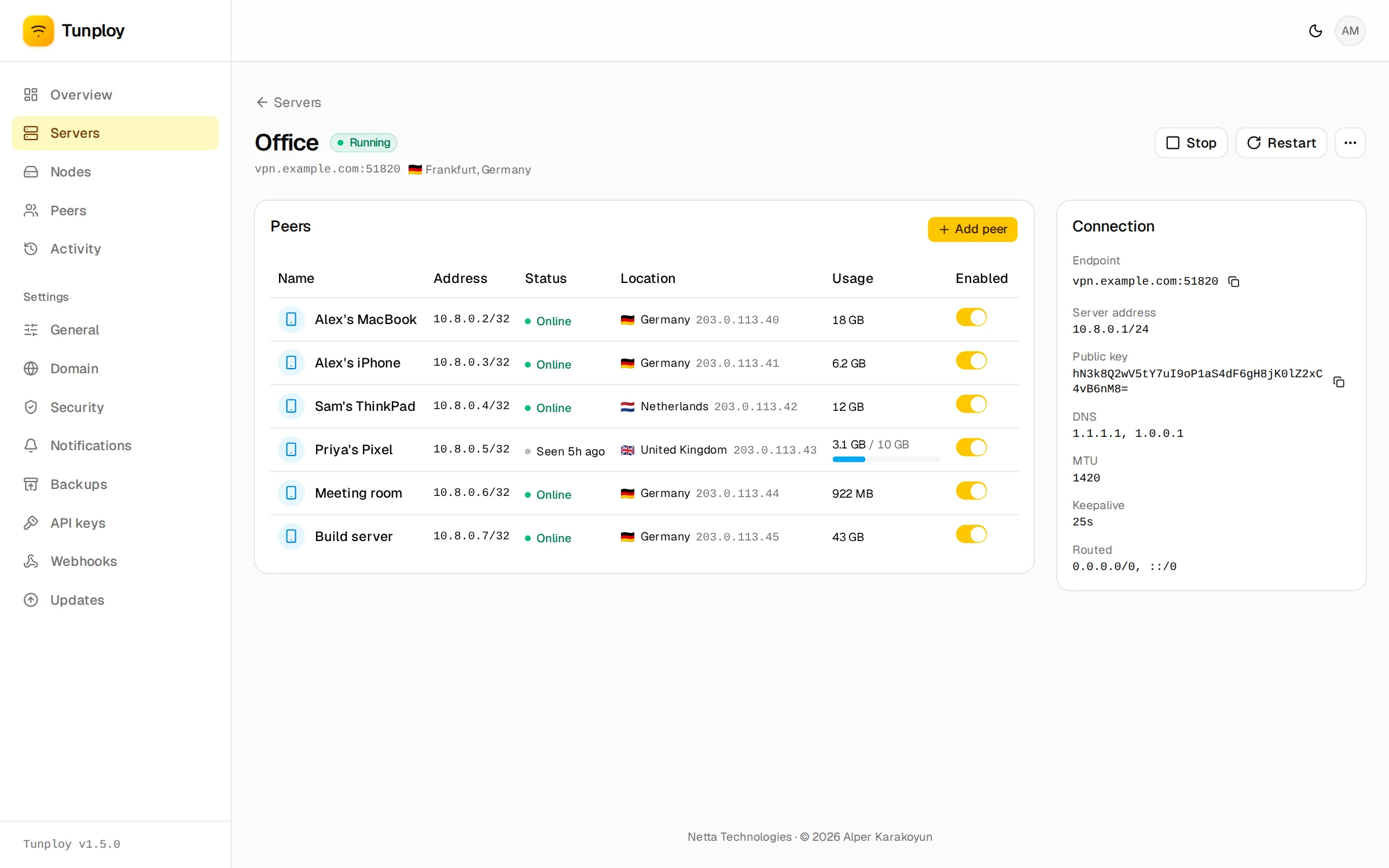
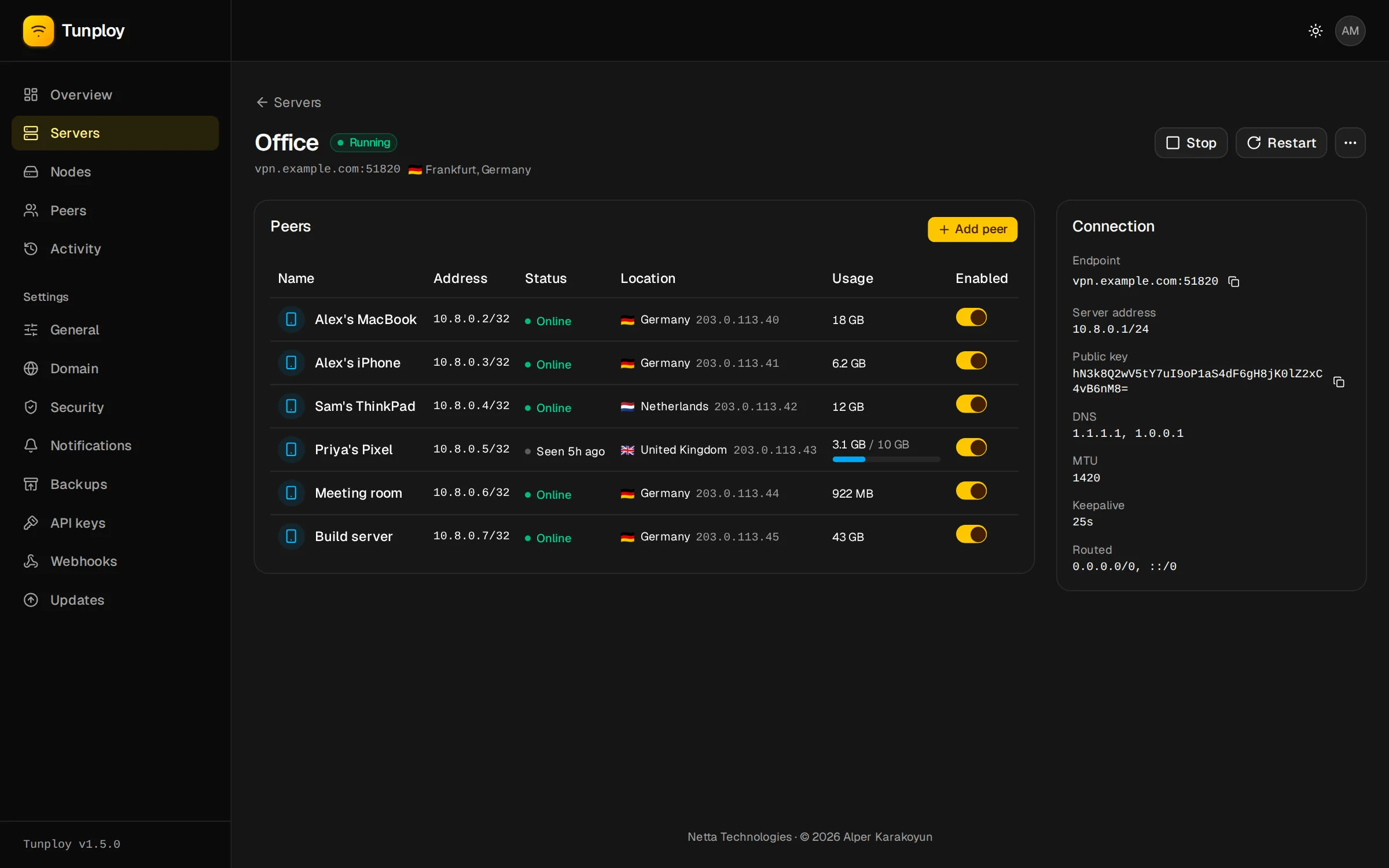
From there you can turn a device off, rename it, show its QR code again, move it to another server, see its daily and monthly usage, or give it a data limit (per month or in total), a speed limit or an expiry date. A device that reaches its limit or its expiry date is blocked until the next month or until you change it, and the activity log records it.
Two more things under a device's menu:
- Share link makes a page for the device's owner with its QR code, config and remaining data, so you don't have to send configs around by hand. Anyone with the link can use the config, so send it only to the owner; you can give it an expiry, and a new link replaces the old one.
- Kill switch, in the QR code dialog, explains how to block a device's internet while the VPN is down. Phones and Windows have their own switch in the WireGuard app; for Linux, Download for Linux with kill switch gives a
.confthat makeswg-quickadd the firewall rules. It needs a server whose client allowed IPs are0.0.0.0/0.
Activity
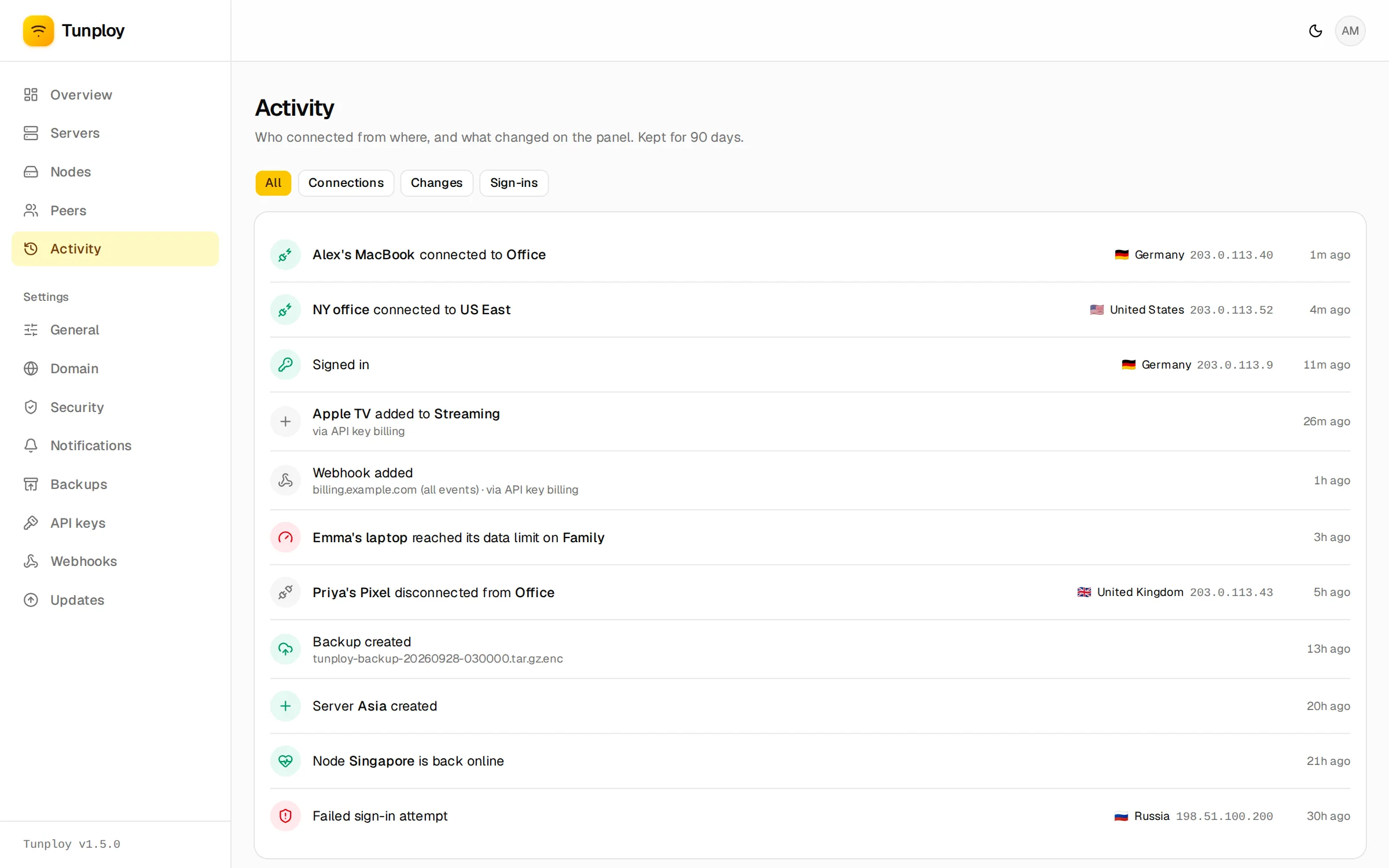
Activity shows who connected from where, and what changed on the panel, for the last 90 days. Filter by connections, changes or sign-ins.