HTTPS
Serve the panel over HTTPS with its own domain, behind your reverse proxy, or over SSH.
Out of the box the panel serves plain HTTP. Pick one of these three ways to encrypt it.
Your own domain, from the panel
The install publishes TCP 80 and 443 next to the panel port, so HTTPS needs no reinstall:
At your DNS provider, add an A record for a domain or subdomain, such as panel.example.com, pointing to the server's public IP.
Allow TCP 80 and 443 in your hosting provider's firewall.
In the panel, open Settings → Domain, enter the domain (and optionally an email for Let's Encrypt), and press Save.
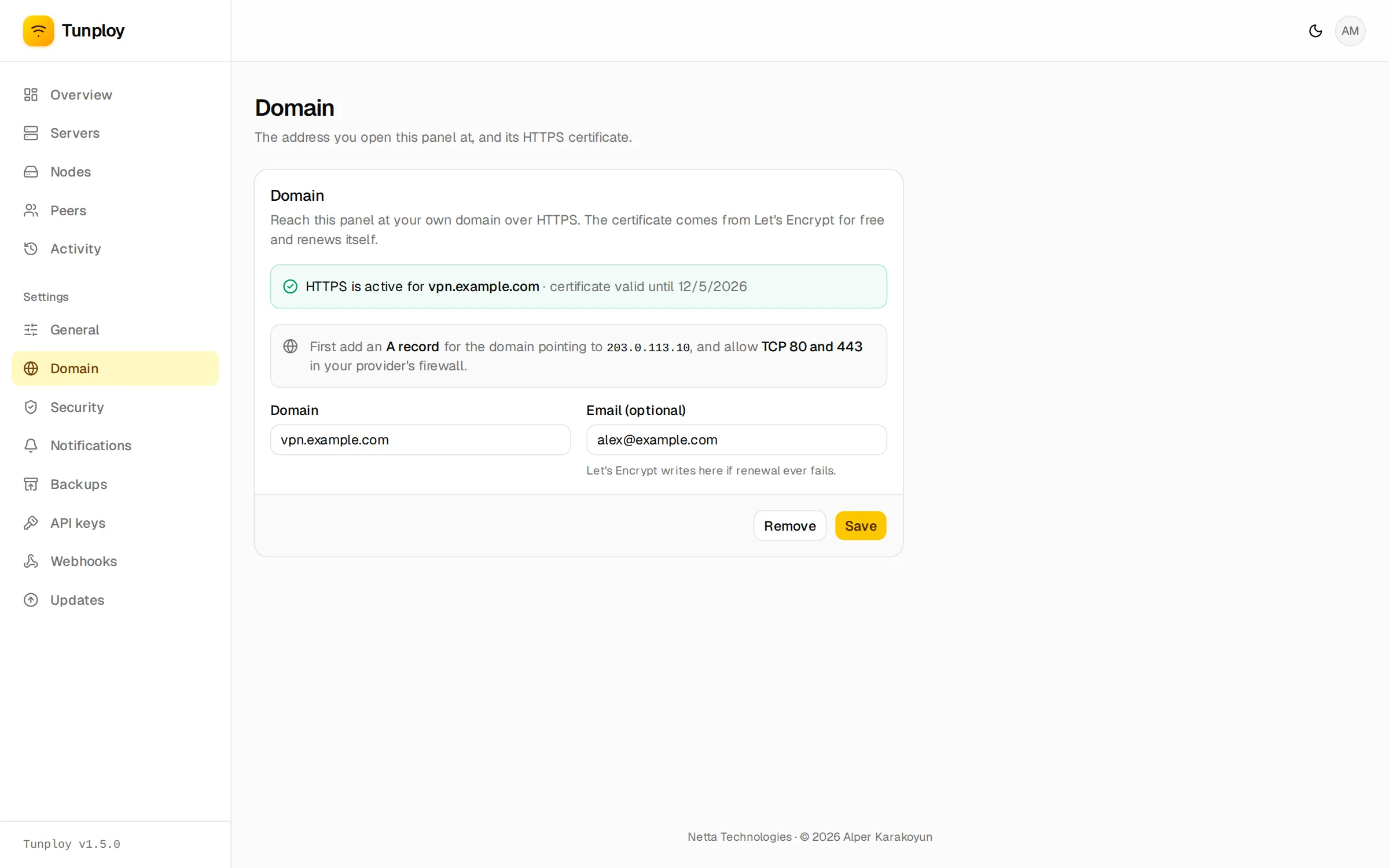
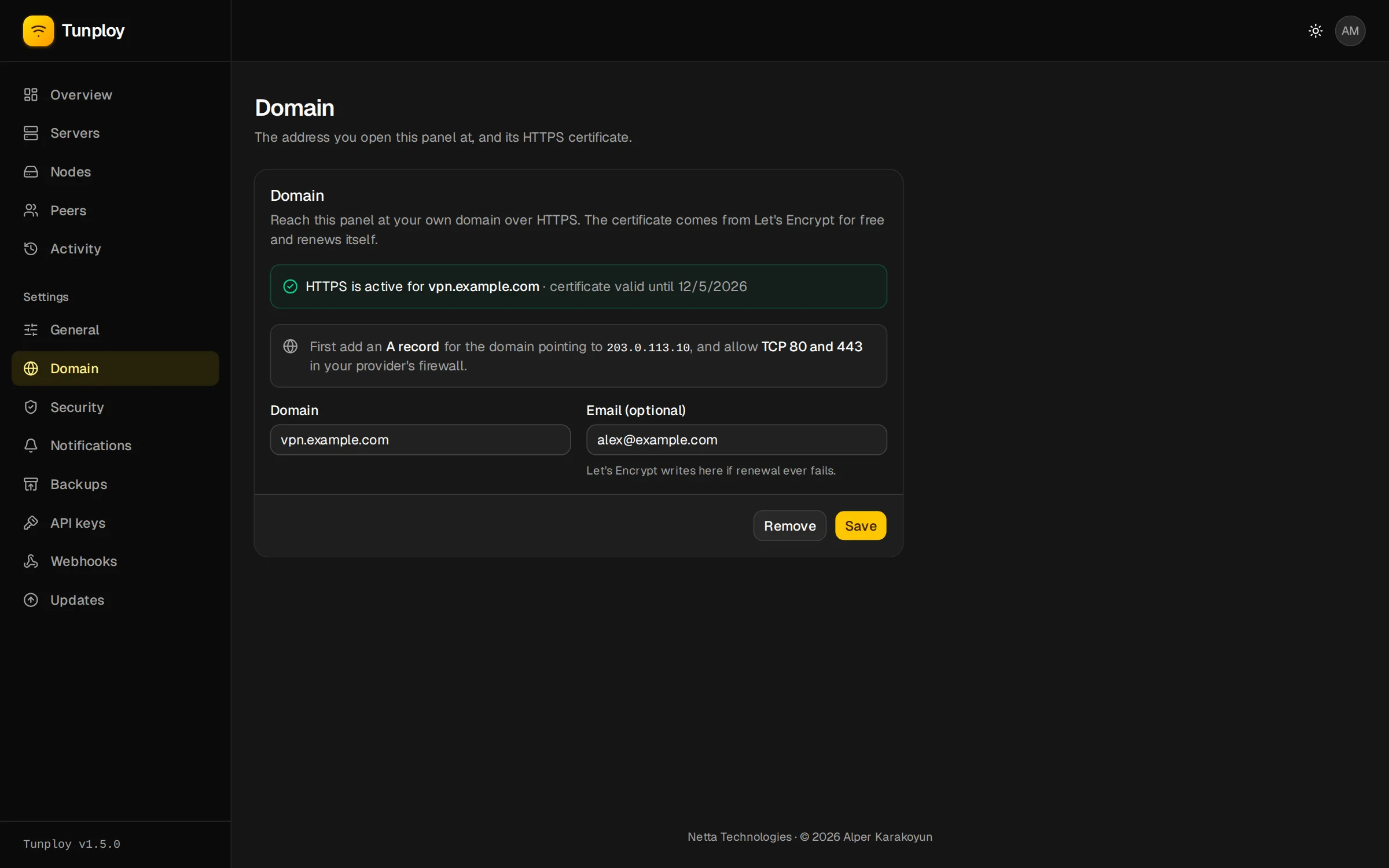
Tunploy checks that the domain resolves, requests a certificate from Let's Encrypt, and shows the result right there: HTTPS is active with the expiry date, or the reason it failed. The certificate renews itself and is kept in /var/lib/tunploy/certs. Port 80 answers Let's Encrypt's check and sends browsers to https://panel.example.com.
The panel stays reachable on http://SERVER_IP:3000 too, as a way in if DNS ever breaks; its sign-in page then links to the HTTPS address. To close port 3000 to the internet, reinstall with TUNPLOY_BIND=127.0.0.1 and use an SSH tunnel for that way in.
If the certificate fails
It is almost always an A record that does not point here yet (DNS changes can take a while) or TCP 80 blocked by the provider's firewall. Let's Encrypt allows only a few failed attempts an hour, so fix the cause before pressing Try again. Remove takes the domain away and returns the panel to plain HTTP.
If another web server already holds 80 or 443, the install warns and runs the panel without them. Free the ports and run the install again, or use the reverse proxy below.
Behind your own reverse proxy
If the server already runs Caddy, nginx or Traefik on 80 and 443, point the proxy at 127.0.0.1:3000 and tell Tunploy which addresses the proxy connects from:
curl -fsSL https://raw.githubusercontent.com/kwa0x2/tunploy/main/install.sh \
  | sudo TUNPLOY_HTTPS=false TUNPLOY_BIND=127.0.0.1 TUNPLOY_TRUSTED_PROXIES=172.16.0.0/12 sh
TUNPLOY_TRUSTED_PROXIES lists the addresses or CIDRs your proxy connects from; only from those does Tunploy believe X-Forwarded-For and X-Forwarded-Proto. A proxy on the same host reaches the container through Docker's bridge, so 172.16.0.0/12 covers it.
Without this setting, the activity log shows the proxy's address for every sign-in, and session cookies are not marked Secure.
Over SSH instead
Keep the panel private and reach it through SSH, which encrypts the connection. Install with TUNPLOY_BIND=127.0.0.1, then on your own computer run:
ssh -L 3000:localhost:3000 root@YOUR_SERVER_IPLeave that terminal open and browse to http://localhost:3000.