Backups
Back up the whole panel to your computer or any S3-compatible storage, and restore it anywhere.
A backup is one .tar.gz file with every server and device (including their keys), the panel settings, the admin account, traffic history and the HTTPS certificate.
Anyone who has a backup can run your VPN, so keep it private, or encrypt it.
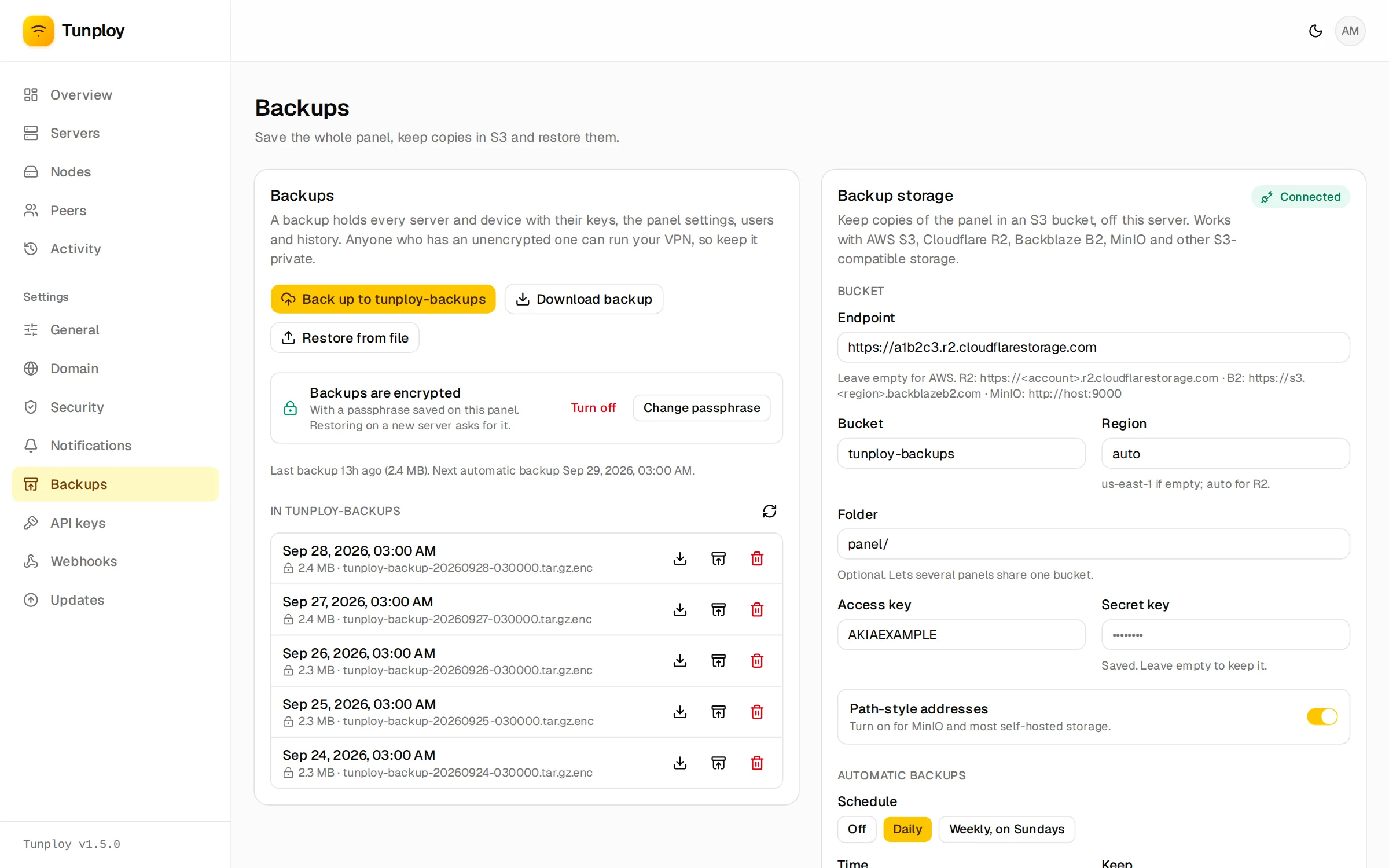
Download and restore
Under Settings → Backups, Download backup saves one to your computer, and Restore from file loads one back.
A restore replaces everything on the panel, restarts the VPN servers (devices drop for a moment) and signs everyone out; sign in with the account from the backup. A backup from an older Tunploy is upgraded as it is restored; one from a newer Tunploy is refused, so update the panel first.
S3 storage
To keep copies off the server, connect an S3 bucket under Settings → Backups. Any S3-compatible storage works:
| Provider | Endpoint | Region | Path-style |
|---|---|---|---|
| AWS S3 | leave empty | the bucket's region, such as eu-central-1 | off |
| Cloudflare R2 | https://<account-id>.r2.cloudflarestorage.com | auto | on |
| Backblaze B2 | https://s3.<region>.backblazeb2.com | the region in the endpoint | off |
| MinIO and other self-hosted | http://host:9000 | leave empty | on |
Create a key that can only read, write, list and delete in that bucket. Test connection and Connect upload, list and delete a small test file first, and show the storage's own answer if something is wrong.
Choose a daily or weekly schedule and how many backups to keep; older ones are deleted after each new backup. A failed scheduled backup is retried every 30 minutes and emailed once, if email notifications are on. The bucket's backups are listed on the same page, where you can download, restore or delete each one.
Encryption
Set passphrase on the Backups card encrypts every new backup, downloaded or in the bucket (AES-256-GCM, with the key derived from the passphrase by argon2id); encrypted files end in .tar.gz.enc.
The panel keeps the passphrase so scheduled backups can run, which means encryption protects a leaked file or bucket, not a panel someone already controls.
Keep the passphrase somewhere safe
Keep it in a password manager: without it an encrypted backup cannot be restored by anyone.
Changing or turning it off only affects new backups; older ones still need the passphrase they were made with. The panel tries its own passphrase first when restoring, and asks for one when that does not fit.
Moving to a new server
Install Tunploy there, connect the same bucket and folder, and restore the newest backup (enter the passphrase if it is encrypted). Point your DNS (or each server's endpoint) at the new address afterwards, since devices still dial the old one.
Restoring from the command line
When the panel will not start, restore on the server itself. It works whether the panel is running or not; restart it afterwards and it rebuilds its VPN servers as it starts:
tunploy backup list
tunploy backup restore --s3 tunploy-backup-20260925-030000.tar.gz
tunploy restart
To restore a file on the server instead, pass its path: tunploy backup restore ./tunploy-backup-20260925-030000.tar.gz. Without a terminal, add --yes and pipe the passphrase on stdin.
If the database is damaged
The container keeps restarting and the tunploy command cannot reach it. Stop it, move the database aside, and restore from a file with a one-off container on the same data directory:
docker stop tunploy
mv /var/lib/tunploy/tunploy.db /var/lib/tunploy/tunploy.db.broken
rm -f /var/lib/tunploy/tunploy.db-wal /var/lib/tunploy/tunploy.db-shm
docker run --rm -it -v /var/lib/tunploy:/var/lib/tunploy -v "$PWD":/backup \
  ghcr.io/kwa0x2/tunploy:latest backup restore /backup/tunploy-backup-20260925-030000.tar.gz
docker start tunploy